
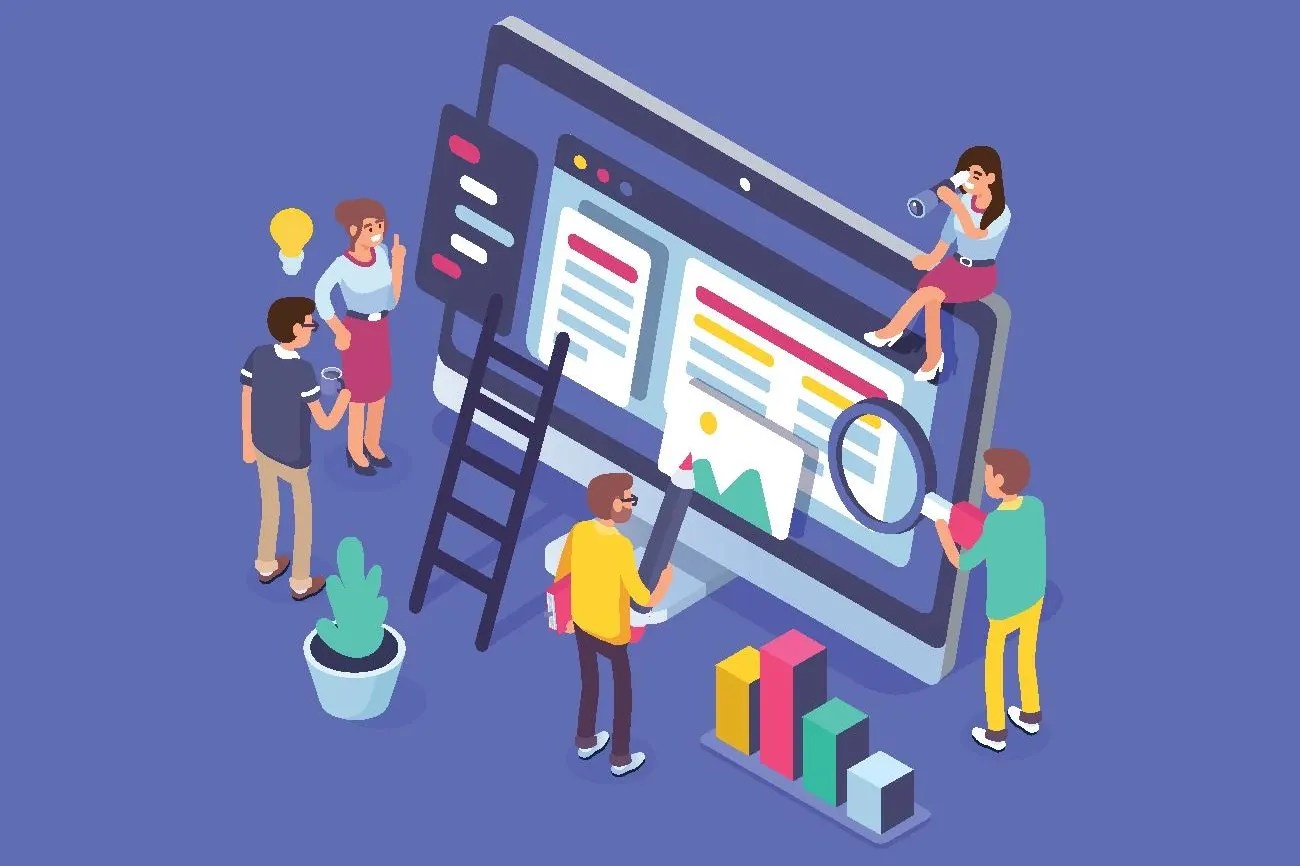
Website accessibility is the practice of designing and developing websites in a way that ensures they can be easily used and navigated by people with disabilities. This concept can be related to a real-world example by considering how physical spaces are designed to be accessible to individuals with disabilities, such as wheelchair users or those with visual impairments. You’d have a ramp and elevators for wheelchair users and you’d also have Braille signs for the visually impaired.
Accessibility is not just about making things work for screen readers or keyboard navigation – it’s about crafting an experience that resonates with all senses.
Adaptive Web Design in front-end development provides all users equal access to information and services on the website. People shouldn’t be excluded from accessing information because of their disabilities. People with disabilities face challenges when navigating web content that isn’t designed with accessibility in mind. It can lead to confusion, frustration, or abandonment of the website or app.
Let’s take a look at a few best practices for crafting websites that are accessible to all!
Use Semantic HTML: It provides meaning and structure to the content on a webpage, making it easier for assistive technologies and users with disabilities to understand. With over 100 HTML elements, and the ability to create custom elements, there are infinite ways to mark up your content; but some ways—notably semantically—are better than others. Semantic means “relating to meaning”. Writing semantic HTML means using HTML elements to structure your content based on each element’s meaning, not its appearance.
Let’s take an example
<div>
  <span>Three words</span>
  <div>
    <a>one word</a>
    <a>one word</a>
    <a>one word</a>
    <a>one word</a>
  </div>
</div>
<div>
  <div>
    <div>five words</div>
  </div>
  <div>
    <div>three words</div>
    <div>forty-six words</div>
    <div>forty-four words</div>
  </div>
  <div>
    <div>seven words</div>
    <div>sixty-eight words</div>
    <div>forty-four words</div>
  </div>
</div>
<div>
   <span>five words</span>
</div>
<header>
<h1>Three words</h1>
<nav>
<a>one word</a>
<a>one word</a>
<a>one word</a>
<a>one word</a>
</nav>
</header>
<main>
<header>
<h1>five words</h1>
</header>
<section>
<h2>three words</h2>
<p>forty-six words</p>
<p>forty-four words</p>
</section>
<section>
<h2>seven words</h2>
<p>sixty-eight words</p>
<p>forty-four words</p>
</section>
</main>
<footer>
<p>five words</p>
</footer>Which code block conveyed meaning? Using only the non-semantic elements of <div>and <span>, you really can’t tell what the content in the first code block represents. The second code example, with semantic elements, provides enough context for a non-coder to decipher the purpose and meaning without having ever encountered an HTML tag. It definitely provides enough context for the developer to understand the outline of the page, even if they don’t understand the content, such as content in a foreign language.
In the second code block, we can understand the architecture even without understanding the content because semantic elements provide meaning and structure. You can tell that the first header is the site’s banner, with the <h1> likely to be the site name. The footer is the site footer: the five words may be a copyright statement or business address.
Semantic markup isn’t just about making markup easier for developers to read; it’s mostly about making markup easy for automated tools to decipher. Developer tools demonstrate how semantic elements provide machine-readable structure as well.
Provide Captions and Transcripts for Videos/Audio Content: Captions or transcripts should be added to videos and audio content to make them accessible to users with hearing impairments.
Use Alt Text for Images: Images often convey important information, such as charts, graphs, diagrams, or icons. Alt text provides an opportunity to convey this information to users who can’t view the image.
Use High Color Contrast: High colors contrast is significant because it makes the text easier to read for users with low vision.
Provide Keyboard Navigation: Keyboard navigation allows users to access all website functionalities. This is very helpful and vital for people with motor impairments who can’t use a mouse or other pointing devices.
Testing
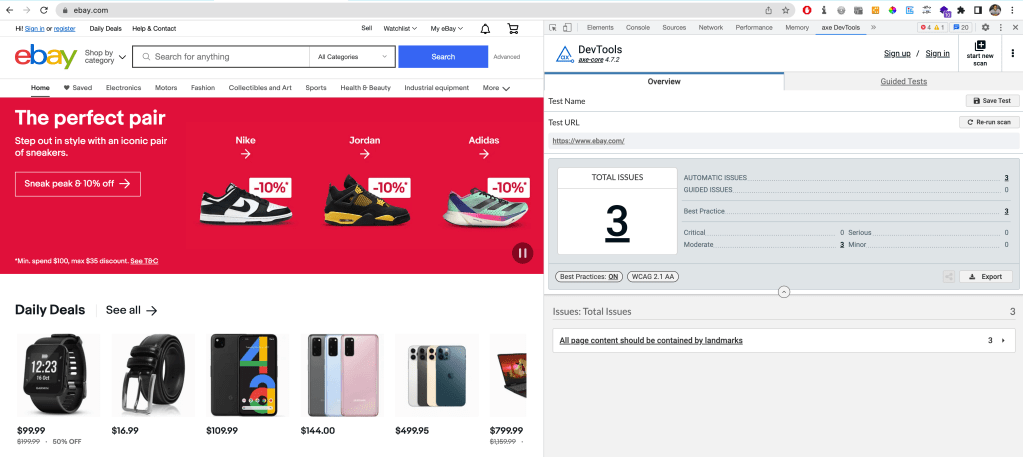
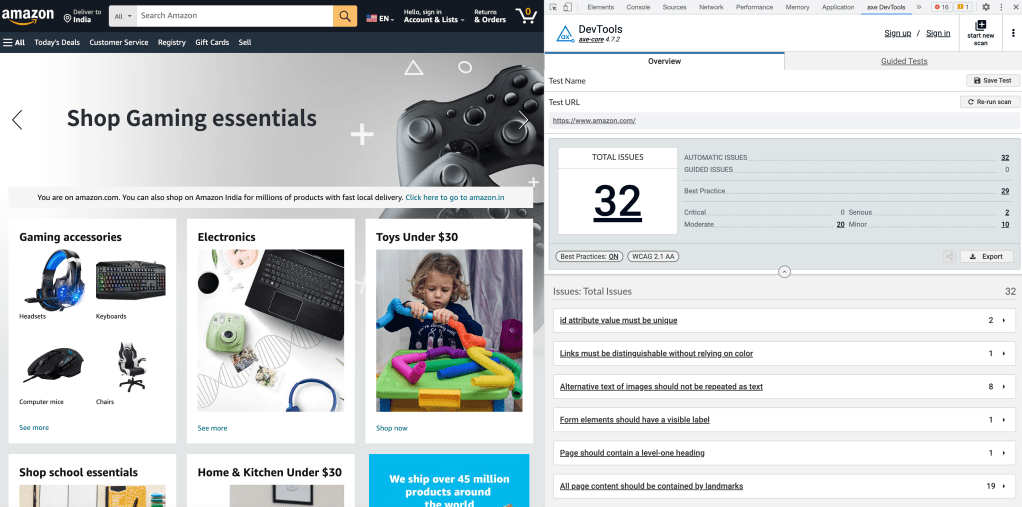
Testing websites is a highly crucial step in ensuring that your website or app is accessible to all users, regardless of their physical abilities. Most importantly, testing helps you identify any issues and address them before they become an obstacle for people. You can use a powerful testing tool, axe DevTools, and download its extension to check errors quickly in your browser. Additionally, use keyboard-only navigation and screen readers to test your website or application and make sure all elements and content are accessible using these technologies.
I did a quick check for eBay.com renowned for its high standards when it comes to engineering. Below we see just 3 issues shown on the axe DevTools Chrome extension for eBay as compared to amazon.com
Go ahead and try this extension out on the projects you are working on and I am sure it will help with delivering sites that check all the boxes on accessibility! Let me know in the comments section if you have any more recommendations on accessibility best practices. :)
 Kenrick Vaz
One thought on “Web Accessibility For Front-End Devs”