

While we were checking out competitors for an opportunity with one of our clients, we came across this feature at cycloid.io to generate Terraform state files for existing infra on public cloud infrastructure (Azure, AWS, GCP) or VMWare. Was surprised to see that they had open-sourced the core of this functionality with TerraCognita!
Since I have worked with Terraform before, I was keen to see how this product would reverse engineer the state files for existing infra.
Using TerraCognita is straightforward. First, you need to install TerraCognita.
curl -L https://github.com/cycloidio/terracognita/releases/latest/download/terracognita-linux-amd64.tar.gz -o terracognita-linux-amd64.tar.gz
tar -xf terracognita-linux-amd64.tar.gz
chmod u+x terracognita-linux-amd64
sudo mv terracognita-linux-amd64 /usr/local/bin/terracognita
If you’re macOS user and using Homebrew, you can install via brew command:
brew install terracognitaOnce you have done the installation, you can use the terracognita command-line interface to generate Terraform configuration files for your infrastructure
terracognita [TERRAFORM_PROVIDER] [--flags]The documentation isn’t too great online. Since our client was primarily using Azure, I went ahead with exploring for Azure.
Below is a synopsis of the flags that are supported:
–client-id string Client ID (required)
–client-secret string Client Secret (required)
–environment string Environment (default “public”)
–resource-group-name strings Resource Group Names (required)
–subscription-id string Subscription ID (required)
-t, –tags strings List of tags to filter with format ‘NAME:VALUE’
–tenant-id string Tenant ID (required)
Global Flags:
-d, –debug Activate the debug mode which includes TF logs via TF_LOG=TRACE|DEBUG|INFO|WARN|ERROR configuration https://www.terraform.io/docs/internals/debugging.html
-e, –exclude strings List of resources to not import, this names are the ones on TF (ex: aws_instance). If not set then means that none the resources will be excluded
–hcl string HCL output file or directory. If it’s a directory it’ll be emptied before importing
–hcl-provider-block Generate or not the ‘provider {}’ block for the imported provider (default true)
-i, –include strings List of resources to import, this names are the ones on TF (ex: aws_instance). If not set then means that all the resources will be imported
–interpolate Activate the interpolation for the HCL and the dependencies building for the State file (default true)
–log-file string Write the logs with -v to this destination (default “/Users/kenrickvaz/Library/Caches/terracognita/terracognita.log”)
–module string Generates the output in module format into the directory specified. With this flag (–module) the –hcl is ignored and will be generated inside of the module
–module-variables string Path to a file containing the list of attributes to use as variables when building the module. The format is a JSON/YAML, more information on https://github.com/cycloidio/terracognita#modules
–target strings List of resources to import via ID, those IDs are the ones documented on Terraform that are needed to Import. The format is ‘aws_instance.ID’
–tfstate string TFState output file
-v, –verbose Activate the verbose mode
Terracognita has a powerful feature that allows it to directly generate Terraform modules during the import process. To utilize this feature, you can use the –module {module/path/name} flag, where you specify the desired path for the module to be generated. This path can either be an existing directory or a non-existent path that will be created.
It’s important to note that when generating a module, the existing content of the specified path will be deleted (after user confirmation) to ensure a clean import and organization of the generated resources.
Our client had everything on the cloud mapped to app codes and environment. So my query below took that into consideration, you may tweak it based on your need
terracognita azurerm \
--client-id <client_id> \
--client-secret <client_secret> \
--resource-group-name <resource_group> \
--subscription-id <subscription_id> \
--tenant-id <tenant_id> \
--hcl ./azure \
--module ./output/<env>/<appcode> \
--tags appcode:<appcode> \
--include azurerm_key_vault,azurerm_mssql_database,azurerm_mssql_server,azurerm_mssql_virtual_machine,azurerm_public_ip,azurerm_storage_account,azurerm_kubernetes_cluster,azurerm_container_registry,azurerm_resource_group,azurerm_monitor_action_group
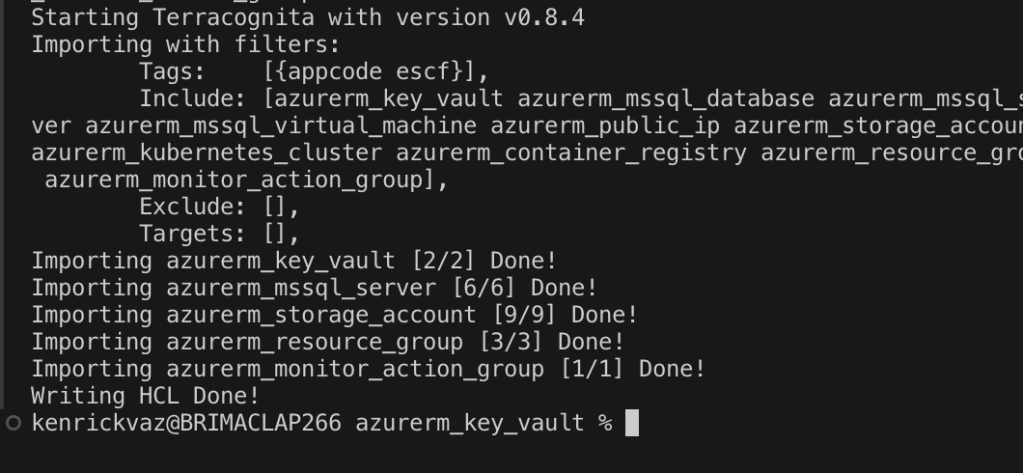
Your output will be something like this
Validation
To confirm the accuracy of the infrastructure snapshot, navigate to the “terracognita” directory and execute terraform init followed by terraform plan. If the auto-generated code accurately represent your existing Azure resources, Terraform should not detect any changes. Depending on your specific setup and requirements, some manual code adjustments may still be necessary.
Limitations
- The tool lacks comprehensive documentation, making it challenging for users to understand its functionalities thoroughly
- The exporting process can be time-consuming, especially when dealing with policies
- The auto-generated Terraform code may lack accuracy, requiring additional manual adjustments
Conclusion
Using Infrastructure as Code (IaC) is now a widely recognized best practice. It’s a great idea to translate your infrastructure into Terraform, and there are tools to help with that. But remember, these tools have limitations. No tool is perfect; they all have constraints and challenges. While these tools can be useful, it’s up to the software engineers to make sure the move to Infrastructure as Code is successful and accurate.
 Kenrick Vaz