

SwiftUI was introduced by Apple at WWDC 2019 as a modern and declarative user interface framework for building apps across all Apple platforms. SwiftUI represented a significant shift in the way developers create user interfaces compared to the traditional UIKit or AppKit frameworks. SwiftUI was designed to make app development faster, easier, and more intuitive by providing a clear and concise syntax for describing UI layouts and behaviors. Swift UI keeps getting better and better with every WWDC!
In iOS 17, SwiftUI got a new view dedicated to presenting an empty state of your app, ContentUnavailableView.
This is what ContentUnavailableView look like out of the box.
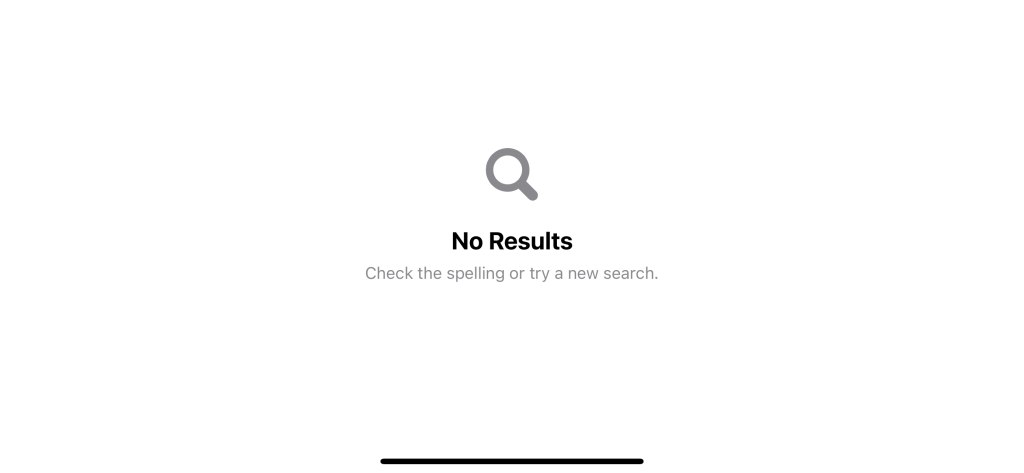
When should we use ContentUnavailableView
As you might be able to guess from the name, ContentUnavailableView is meant to use when a view’s content can’t be displayed.
This can happen for many reasons, such as a network error, a list without items, or a search that returns no result.
How to use ContentUnavailableView
There are many ways we can use ContentUnavailableView. I will categorize them into three groups.
- Built-in unavailable views
- Custom unavailable views
- Unavailable views with actions
Built-in unavailable views
As discussed in the last section, ContentUnavailableView can be used in many circumstances where the view’s content isn’t available. But, a search that yielded no result is the only scenario Apple supported out of the box. In iOS 17, ContentUnavailableView has only one built-in static variable, search.
You can quickly present an unavailable view that conveys an empty search result view using ContentUnavailableView.search.
struct ContentView: View {
    var body: some View {
        ContentUnavailableView.search
    }
}
With a simple line of code, you will get a magnifying glass image, a “No results” label, and a description of how to get a proper search result.
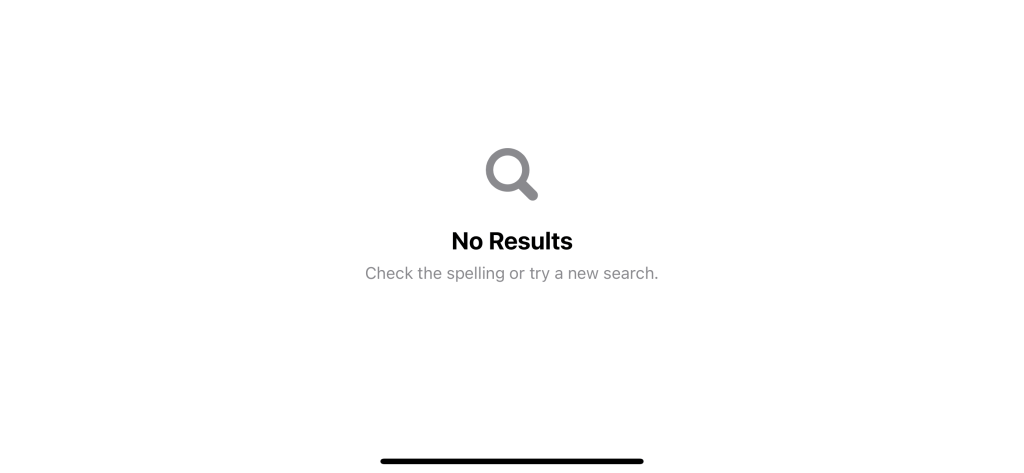
You also have another option to create an empty search view with a provided search query.
struct ContentView: View {
    var body: some View {
        ContentUnavailableView
            .search(text: "Kenrick")
    }
}
Custom unavailable views
If you want to use ContentUnavailableView for view other than search, you can easily do that with other initializers that accept:
- Label
- Image
- Description
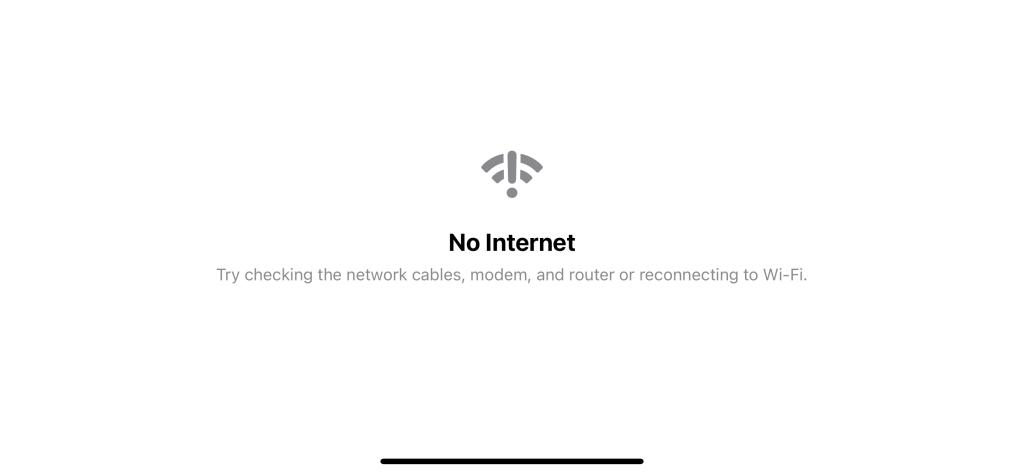
In the following example, we create an empty view for a network error.
ContentUnavailableView(
    "No Internet",
    systemImage: "wifi.exclamationmark",
    description: Text("Try checking the network cables, modem, and router or reconnecting to Wi-Fi.")
)
Unavailable views with Actions
The last way of creating an unavailable view is the most flexible one.
init(
    @ViewBuilder label: () -> Label,
    @ViewBuilder description: () -> Description = { EmptyView() },
    @ViewBuilder actions: () -> Actions = { EmptyView() }
)
You can inject three @ViewBuilder that populate an unavailable view.
- label, which use for the title and image.
- description, which use for content.
- actions, which you can use to provide extra actions.
As you can see, we got an extra parameter, actions, which you can use to provide an action for your empty view, e.g., action buttons.
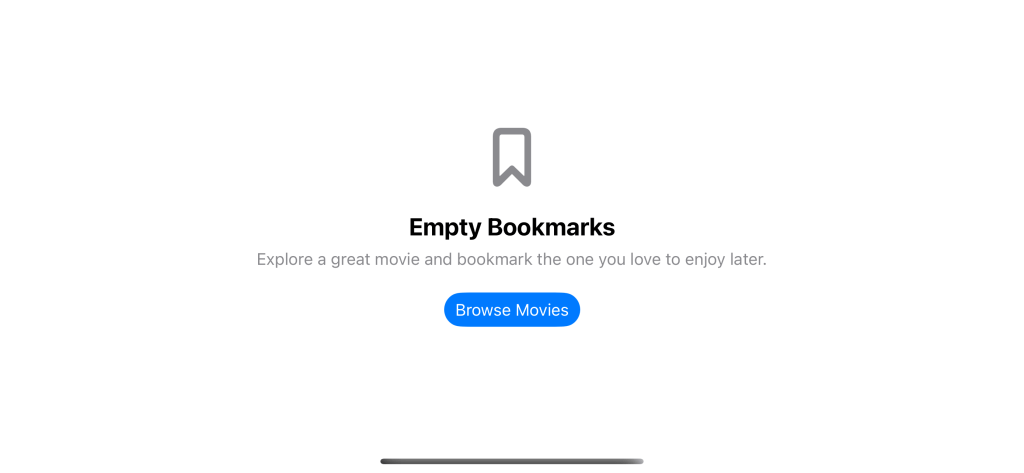
In the following example, we provide an action button that will direct users to another view.
ContentUnavailableView {
    Label("Empty Bookmarks", systemImage: "bookmark")
} description: {
    Text("Explore a great movie and bookmark the one you love to enjoy later.")
} actions: {
    Button("Browse Movies") {
        // Go to the movie list.
    }
    .buttonStyle(.borderedProminent)
}
Benefit of ContentUnavailableView
While you can achieve the same thing using VStack and Text, ContentUnavailableView can save you some development time for this boring and repetitive task.
Apart from standard and consistency, ContentUnavailableView also ensures it looks great across platforms.
Here is an example of ContentUnavailableView on Apple Watch where ContentUnavailableView will automatically hide an image to save some space.

Hope this article helped you understanding how we can leverage ContentUnavailableView in SwiftUI! :)
 Kenrick Vaz